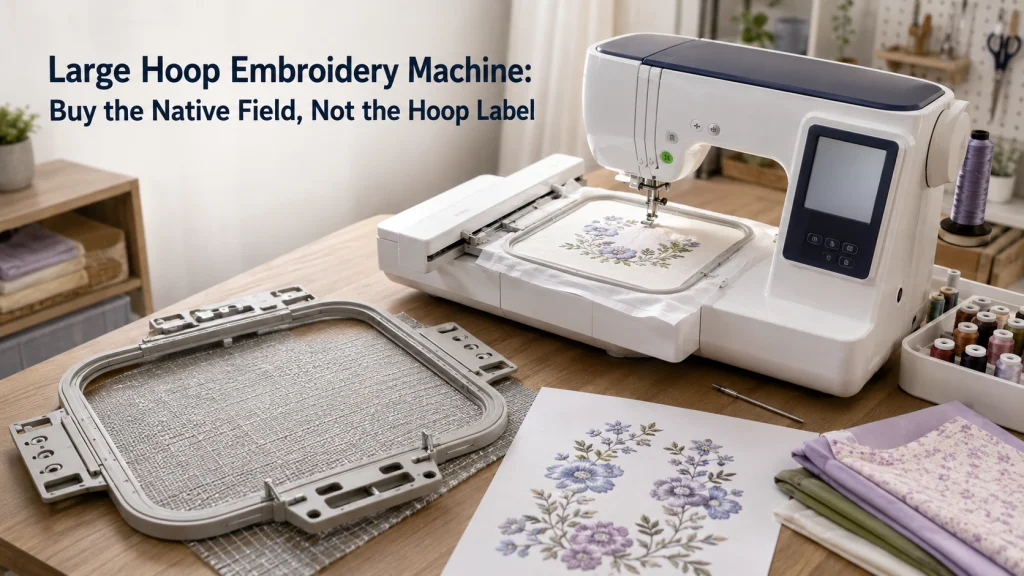
A large physical hoop does not automatically give an embroidery machine a larger native stitchable field. The buying decision should start with the exact dimensions and orientation of the designs you repeatedly want to stitch, then move to the machine’s documented maximum embroidery area. Included hoops, optional hoops, and multi-position frames are separate facts that should not be treated as substitutes for native field size. This article shows how to turn those distinctions into a practical keep, split-workflow, or upgrade decision without teaching multi-hooping or digitizing technique.
A Large Hoop Does Not Prove a Larger Stitchable Field
When shopping for a large hoop embroidery machine, treat the hoop label as a reason to verify the native field, not as proof of it. A buyer with a 4 x 4 machine can see a physically larger frame, expect a larger one-piece design area, and still find that the machine rejects a file beyond its programmed maximum. The purchasing mistake happens before stitching begins because the accessory dimension is being used as a machine specification. The direct fix is to compare the design dimensions with the machine’s documented maximum embroidery area first.
That order changes what deserves attention in the rest of the comparison. If the recurring design already fits the current field, a larger frame or a larger-field machine may not solve a meaningful problem. If the design repeatedly exceeds the field, the machine limit becomes a legitimate reason to evaluate a different system rather than a reason to guess from packaging. Readers still deciding whether embroidery itself is the right system should first compare home sewing machine types before making field size the controlling purchase requirement.
Record the Largest Recurring Design in Exact Dimensions
Start with the largest design that actually recurs in your work, not the largest file you might use someday. Record its finished width and height from the design file or trusted design information. A design beyond either field dimension is still too large for native one-design stitching. Repeating this check across real projects is more useful than planning around one unusual file.
A simple ledger keeps the decision tied to measurements instead of labels such as small, medium, or large. Record the design dimensions, required orientation, current native field, and whether the file fits as one design. If several important designs fail for the same dimensional reason, that pattern supports a stronger upgrade case. The worksheet also shows exactly which field dimension is creating the constraint.
| Design record | What to write down | Why it matters |
|---|---|---|
| Finished design size | Exact width and height | Defines the minimum field the design needs |
| Orientation | Portrait, landscape, or safely rotatable | Shows which field dimension is limiting |
| Current native field | Manufacturer-published maximum area | Separates machine limit from hoop dimensions |
| Fit result | Fits natively or exceeds the field | Turns the upgrade question into a repeatable record |
Suppose a recurring design measures 6.5 x 8 inches, its orientation is fixed, and the current machine has a documented 5 x 7 native field. The ledger shows that the design exceeds both dimensions, so a physically larger frame on the same machine cannot make it a native one-design fit. That result still does not force an upgrade because frequency, acceptable resizing, and other workflows remain separate decisions. It does establish a concrete field requirement for the next comparison.
Record Portrait and Landscape Orientation Needs
Width and height are not interchangeable when the design has a fixed visual direction on the project. A tall chest motif, vertical name layout, or long border element may need the longer field dimension in a specific orientation even when the same numbers would fit after rotation. Rotation can solve a field mismatch only when the design, garment placement, fabric handling, and machine interface still make sense after the change. Treat orientation as part of the design requirement rather than assuming every rectangular field can be used either way.
This is especially important when two machines publish fields that look similar by total area but have different proportions. A near-square field and a long rectangular field can support very different design envelopes even if both are marketed as generous. Record which dimension is repeatedly limiting and how often the design can be safely rotated before choosing a field band. That prevents the purchase from being driven by the biggest-looking number instead of the shape of the designs that actually need to fit.
Define Native Maximum Embroidery Field Separately From Physical Hoop Size
The native maximum embroidery field is the machine specification that answers how large one design can be within the system’s supported stitch area. The physical hoop is the frame that holds the fabric, and its outside dimensions are not the same measurement as that stitchable area. Brother support documentation treats maximum embroidery space and compatible hoop size as separate facts rather than interchangeable labels. Use that same distinction when reading any specification sheet or retailer description.
For a purchase audit, look for a stated maximum embroidery area with exact width and height. Do not calculate it from the outside dimensions of the hoop, estimate it from a product photo, or substitute a phrase such as extra-large frame for the machine limit. If the maximum area is not stated on the sales page, move to the exact manual or manufacturer support documentation. The goal of this section is to identify the controlling machine specification, not to decide which frames are useful later.
Terminology check: Native field tells you whether one design fits within the machine’s documented embroidery area. Supported hoop tells you which frame the manufacturer approves for that machine. A multi-position hoop describes a repositioning option rather than a larger native one-design field. For purchase screening, only the native field answers the one-design fit question.
Once this definition is fixed, the rest of the article can use the terms without circling back to the same warning. Field size becomes the machine-level gate, while hoop support becomes an accessory-level question. Repositioning remains a workflow choice that may or may not be acceptable for an oversized design. Keeping those layers separate makes later comparisons shorter, clearer, and less vulnerable to marketing shorthand.
Separate Native Field, Supported Hoop, and Multi-Position Hoop
After defining the terms, record each one from the documentation as a separate evidence line. The native field should come from the exact machine specification, while the supported hoop list should identify approved frames for that model. Any multi-position frame should be described according to the manufacturer’s intended workflow. This keeps one seller compatibility sentence from carrying more meaning than the evidence supports.
Use those records to answer different purchase questions. Native field answers whether the design fits as one machine job, supported hoop information answers whether the frame belongs to that machine family, and multi-position information shows whether repositioning is involved. A compatible larger frame may still be useful, but it does not belong under native-field capability. This separation also avoids turning a field-size decision into broader first embroidery machine decisions.
| Evidence line | Question it answers | What not to infer |
|---|---|---|
| Native maximum field | Will one design fit natively? | That every large hoop shown is included or supported |
| Supported hoop list | Which frames are approved? | That each frame increases one-design size |
| Multi-position documentation | Does the workflow use repositioning? | That registration or split results are guaranteed |
If one evidence line is missing, leave that part unresolved. Do not fill it with a retailer label. Exact model documentation should close the gap. That makes the comparison easier to audit later.
Use Common Field Classes as Requirement Bands, Not Quality Tiers
Field classes such as 4 x 4, 5 x 7, 6 x 10, and roughly 8 x 12 to 8 x 14 are useful search shorthand, not quality grades. A larger field does not by itself prove better stitch quality, software, support, or ownership fit. Use the field band only to identify machines large enough for the designs in the worksheet. Every other machine factor still needs its own evidence.
Choose the smallest band that clears the recurring requirement with enough room for the actual files you plan to use. If every important design fits a 5 x 7 field, a much larger system needs another justification. If a recurring design needs about 6 x 9, a 5 x 7 field is already disqualified. This turns field size into a gate rather than a prestige ladder.
| Field band | Decision use | Do not assume |
|---|---|---|
| About 4 x 4 | Small native designs | A larger physical frame creates a larger single-design field |
| About 5 x 7 | Moderate step up in design envelope | Every 5 x 7-class machine has identical hoop support |
| About 6 x 10 | Longer and wider native design requirements | The class label proves broader machine quality |
| About 8 x 12 to 8 x 14 | Large home or prosumer design envelopes | Extra field is automatically worth the cost or footprint |
These bands are deliberately approximate. Exact maximum areas belong to exact machines. Replace the shorthand with the manufacturer’s published width and height before buying. Keep the worksheet dimension as the final pass-or-fail requirement.
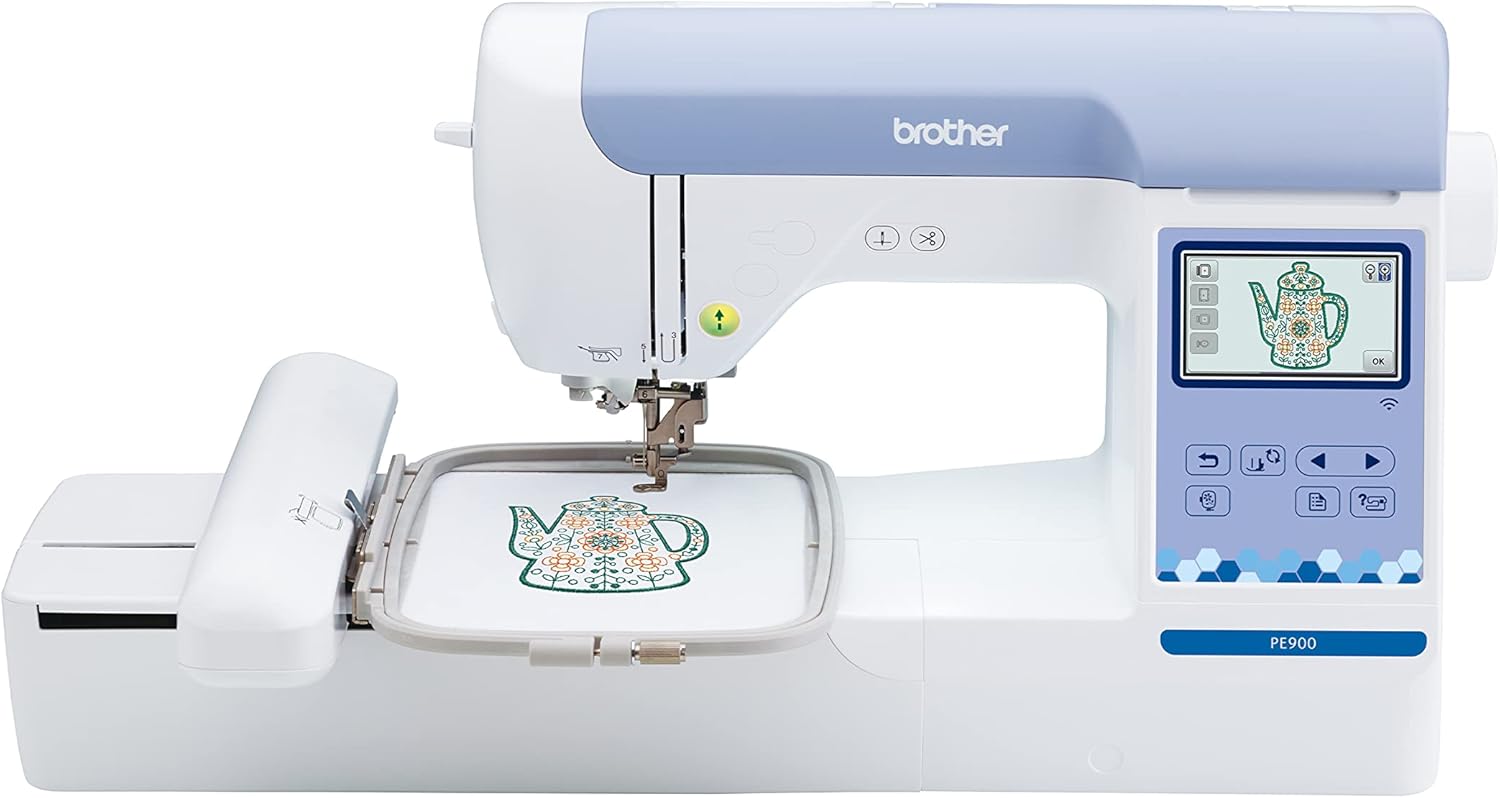
The Brother PE900 is an embroidery-only machine with a 5 x 7 inch maximum embroidery area and an included 5 x 7 frame. It has 193 built-in embroidery designs, 13 lettering fonts, and a 3.7 inch color LCD touchscreen with on-screen editing. Wireless LAN supports Design Database Transfer from a compatible PC, while a built-in USB port provides another way to import embroidery files.
Check On AmazonIf you click this link and buy, we earn a commission at no additional cost to you.
Count How Often Designs Exceed the Current Native Field
An upgrade becomes easier to justify when the current field blocks work repeatedly rather than occasionally. Review a meaningful set of recent or planned designs and mark how many fit natively, how many exceed only one dimension, and how many would require a different workflow. One oversized design can be handled as an exception, while a recurring pattern of rejected sizes suggests the current machine is structurally mismatched to the work. The count should reflect real projects, not an imagined catalog of every design you might someday download.
Frequency also helps separate inconvenience from a genuine system limit. If nearly all designs fit and only a rare decorative piece exceeds the field, keeping the current machine may remain the more economical choice. If the same field barrier appears across garments, bags, quilts, or personalized items that matter to you, native field deserves much more weight in the purchase decision. The point is not to create a universal threshold, but to show whether the constraint is central enough to justify changing machines.
Verify the Exact Machine Limit From Manufacturer Documentation
Once the minimum field is known, verify each candidate against current manufacturer documentation rather than retailer shorthand. Brother lists the NQ1700E with a 6 x 10 maximum embroidery area, which is useful here as a documentation example rather than a recommendation. Janome lists the Memory Craft 550E Limited Edition with a 7.9 x 14.2 maximum embroidery size and separately identifies the hoops included with that machine. Those examples show how a useful spec page states the machine limit and frame information as distinct facts.
Look for the exact model number, maximum embroidery area, included hoops, supported optional hoops when relevant, and the wording used for repositionable or specialty frames. If two manufacturer pages conflict, treat the claim as unresolved until the exact manual or support documentation explains the difference. Do not substitute a retailer’s category label for a machine specification merely because the listing is easier to find. After the field requirement is settled, a broader embroidery machine comparison by use can address the other ownership factors without losing the field constraint you have already established.

The Brother NQ1700E is an embroidery-only machine with a 6 x 10 inch maximum embroidery area and 8.3 inches of space from needle to arm. It includes 258 built-in embroidery designs, 13 lettering fonts, and a 4.85 inch color LCD touchscreen with design editing controls. Wireless connectivity supports Design Database Transfer from a compatible computer, and the machine also includes automatic thread cutting and USB support.
Check On AmazonIf you click this link and buy, we earn a commission at no additional cost to you.
Set a High Evidence Threshold for Alignment or Split-Design Claims
Claims that a larger design can simply be split, repositioned, or aligned should not be treated as equivalent to native-field capability. A split workflow introduces additional steps and may depend on the machine, hoop, design file, software, stabilization, and alignment method. Without a documented test that identifies those conditions, statements about perfect registration or easy alignment are too broad to support a purchase. The safer buying question is whether you are deliberately willing to use a non-native workflow, not whether someone online says it always works.
Community discussions are useful for showing that owners genuinely face this decision, but they do not establish universal alignment performance. If a claim matters enough to change what you buy, look for exact manufacturer instructions or a documented test that names the machine, native field, hoop, design dimensions, split method, and measured result. Otherwise, treat native-field fit as the only verified one-design capability. This article stops at that evidence boundary because teaching multi-hooping, splitting, or digitizing would require a different technical workflow.
Current Field-Band Shortlist After the Minimum Native Field Is Fixed
Do not start with a machine list and assume one field is large enough. Start with the minimum field from the design worksheet and remove any candidate whose documented maximum area cannot contain that requirement. The current models below are verification examples for common home-embroidery field bands, not ranked recommendations, so the published native field remains the first filter. Use the smallest verified field that clears the recurring designs you actually want to stitch natively, then evaluate the rest of the machine separately.
| Minimum field band to investigate | Current model example | Documented maximum embroidery area | How to use the row |
|---|---|---|---|
| 5 x 7 class | Brother PE900 | 5 x 7 inches | A checkpoint beyond 4 x 4. Larger designs need another native field or a deliberate non-native workflow. |
| 6 x 10 class | Brother NQ1700E | 6 x 10 inches | For recurring designs that exceed 5 x 7 but fit within 6 x 10 in the required orientation. |
| Roughly 8 x 14 class | Janome Memory Craft 550E Limited Edition | 7.9 x 14.2 inches | Treat 7.9 as the real width. An exact 8.0-inch design dimension exceeds it. |
| 9.5 x 14 class | Brother Celeste CX1E | 9.5 x 14 inches | For designs beyond narrower bands, subject to exact orientation, hoop support, workspace, and ownership cost. |
After the field filter, compare transfer method, screen workflow, included frames, support, ownership cost, and the physical workspace the exact machine requires. Check published machine dimensions and setup guidance for clearance around the embroidery unit and moving hoop instead of assuming a larger field will fit the same table. The table is a starting set for exact-model verification, not proof that the machine with the largest field is the best fit. Field size should solve the design constraint first, while the machine still has to fit the room, budget, support needs, and working routine.

The Brother Stellaire 2 Innov-is XJ2 is a sewing and embroidery machine with a maximum embroidery area of 14 x 9.5 inches. It has a 10.1 inch high-definition touchscreen, wireless connectivity, and built-in embroidery editing and positioning functions. The machine includes hundreds of embroidery designs, supports Artspira, and provides a large working area for projects that exceed smaller home embroidery fields.
Check On AmazonIf you click this link and buy, we earn a commission at no additional cost to you.
Treat Optional-Hoop Cost and Compatibility as Separate Questions
A machine can meet the native-field requirement and still require an additional hoop for a particular project size or workflow. That accessory cost belongs in the ownership calculation, but it does not change the machine’s documented native maximum field. Verify optional hoops by exact model support, part number, or manufacturer compatibility information rather than assuming a frame fits because its dimensions look right. Two hoops with similar openings can use different mounting interfaces or be approved for different machine families.
Keep a separate note for what is included, what is optional, and what is merely compatible. That prevents the advertised machine price from hiding an accessory purchase you already know the project will require. It also keeps hoop compatibility from taking over this article, because the detailed fit question belongs to the exact machine and frame system rather than to the broad field-size decision. Here, the only question is whether additional hoop cost changes the economics after the native field has already passed.

The Sew Tech SA439MK is a 5 x 7 inch metal magnetic embroidery hoop supplied with eight magnets and an alignment grid. Its Amazon listing identifies compatibility with Brother machines including the NQ1700E, NQ1600E, NQ3550W, NQ3600D, and several Luminaire and Stellaire models. The magnetic frame holds fabric without the conventional inner-and-outer hoop clamping arrangement.
Check On AmazonIf you click this link and buy, we earn a commission at no additional cost to you.
Stop Before Teaching Multi-Hooping or Digitizing
There is an important boundary between deciding to accept a split workflow and teaching someone how to execute one. This article can identify that a design exceeds the native field and that a repositionable or multi-hoop method may exist for some machine and design combinations. It should not provide alignment sequences, software splitting instructions, registration methods, or digitizing steps without a separate, method-specific evidence base. Those tasks can affect stitch placement and require more detail than a buying decision can responsibly compress into a few paragraphs.
The same boundary applies to unsupported workarounds. Do not bypass firmware limits, force an unapproved hoop, or assume the embroidery carriage can safely travel farther because the physical frame appears to have room. Follow the exact machine documentation for supported hoops and operating limits. A larger native field should be purchased when native fit is the requirement, not recreated by defeating the system that defines the machine’s movement envelope.
Decide Whether to Keep the Machine, Use a Deliberate Split Workflow, or Upgrade
Keeping the current machine makes sense when important designs already fit and oversized work is rare. Before moving to a split workflow or a new machine, ask whether an acceptably smaller version would still meet the project goal and is supported by the design source or software you use. That is a finished-size decision, not a resizing tutorial or a reason to assume every design can be reduced safely. Upgrading becomes stronger when recurring designs exceed the native field and their original dimensions matter.
Use a short decision sequence before spending money. Confirm the design dimensions and orientation, compare them with the current field, then decide whether a smaller acceptable version solves the problem. Next, count how often the remaining mismatch occurs and whether you genuinely want a split workflow. If the mismatch is frequent and native one-design stitching matters, limit shopping to machines whose documented field clears the requirement.
- Keep: recurring designs fit the current native field, or an acceptable supported size reduction meets the project need.
- Use a deliberate split workflow: oversized work is occasional and the extra process is acceptable.
- Upgrade: recurring designs exceed the field and native one-design stitching at the required size is a core requirement.
The result should trace back to the worksheet. Bigger is not the goal by itself. The field must clear the real design requirement and fit the available workspace. After that, normal machine criteria can take over.
Final Thoughts: Buy the Native Field, Not the Hoop Label
The safest large-field purchase starts with a design dimension and ends with a manufacturer-documented maximum embroidery area. A large frame, an optional hoop, or a repositionable accessory can be useful without changing the native size of one design the machine can stitch. Treat those facts separately and the marketing language becomes much easier to audit. The right machine is the one whose native field clears the recurring designs that actually matter to your work.
Before upgrading, write down the largest recurring design, its required orientation, the current field, the frequency of the mismatch, and whether a smaller acceptable version or deliberate split workflow would meet the project need. Then verify the candidate machine’s exact field, hoop support, and workspace requirements from current documentation. Do not pay for extra field merely because the number is larger, and do not accept a smaller field because the box includes a physically large hoop. Buy from the native stitchable field first, then judge the rest of the machine on the ownership factors that remain.
FAQs
🪡 Does a larger embroidery hoop let my machine stitch a larger design?
Not automatically. The machine’s documented maximum embroidery area controls the size of one design it can stitch natively, while a larger hoop may only change fabric holding or repositioning options.
📐 What embroidery field size should I buy?
Measure the largest designs you repeatedly want to stitch and note their required orientation. Choose a machine whose documented native field clears those dimensions rather than choosing a field class because it sounds larger.
🖼️ Is a 5 x 7 field enough for large embroidery designs?
It is enough only when the designs you actually use fit within that native field. If recurring files exceed either dimension, the field is too small for those designs even if the machine has other features you like.
🔄 Can I rotate a design to make it fit a smaller field?
Sometimes, but only when the design and project placement can be rotated without changing the intended result. Record portrait and landscape requirements separately so rotation is treated as a real project condition rather than an assumption.
🧩 Is a multi-position hoop the same as a larger native field?
No. A multi-position hoop can support repositioning across more than one field, while the machine’s native maximum embroidery area still controls the single-design field at one position.
💵 Should I upgrade just because my machine has a 4 x 4 field?
Only if the field is repeatedly blocking designs that matter to your work and you want those designs to stitch natively. If most projects already fit, keeping the current machine may be the better ownership decision.
References and Sources
- Brother hoop and embroidery space support: Distinguishes hoop size from maximum embroidery space.
- Brother PE900 specifications: Verifies its 5 x 7 maximum embroidery area.
- Brother NQ1700E specifications: Verifies its 6 x 10 maximum embroidery area.
- Janome 550E Limited Edition specifications: Verifies its 7.9 x 14.2 maximum embroidery size.
- Brother Celeste CX1E specifications: Verifies its 9.5 x 14 maximum embroidery area.